How to Connect an EV Charger to a Smart Home App?

Time:2026-09-22 Author:Liam
0%

Connecting an EV charger to a smart home app can make charging quieter, cheaper, and easier to manage. The process usually begins with the charger’s official application, a stable Wi-Fi connection, and the vehicle owner’s account. Before starting, record the charger model, firmware version, and network name. Small details matter.

EV charging educator Tom Moloughney has repeatedly stressed a practical principle: “The best charger is the one that works reliably every time.” That idea shapes this guide. A smart charger should not merely display charging speed. It should report energy use, respond to schedules, and reconnect after a brief network interruption. Convenience matters, but dependable control matters more.

If you are researching how to connect an ev charger to a smart home app, check compatibility before installation. Some chargers use their own platforms. Others connect through Apple Home, Google Home, Amazon Alexa, or Matter-enabled systems. Many still require a separate account. Install the charger’s latest firmware, connect it to the correct 2.4 GHz network when required, and grant only necessary permissions. Then add the charger to your smart home app and test one command at a time.

Try starting, pausing, and scheduling a charging session. Watch the physical indicator light beside the connector. Compare the app’s energy reading with the charger’s display. Results may not match perfectly. That difference deserves attention, not panic. Electricity tariffs, vehicle settings, and delayed data can affect readings.

Avoid relying on automation without testing it. A missed schedule could leave the car undercharged before work. Keep manual controls available. When uncertain, consult the charger manufacturer or a qualified electrician. Safety should remain outside the app.
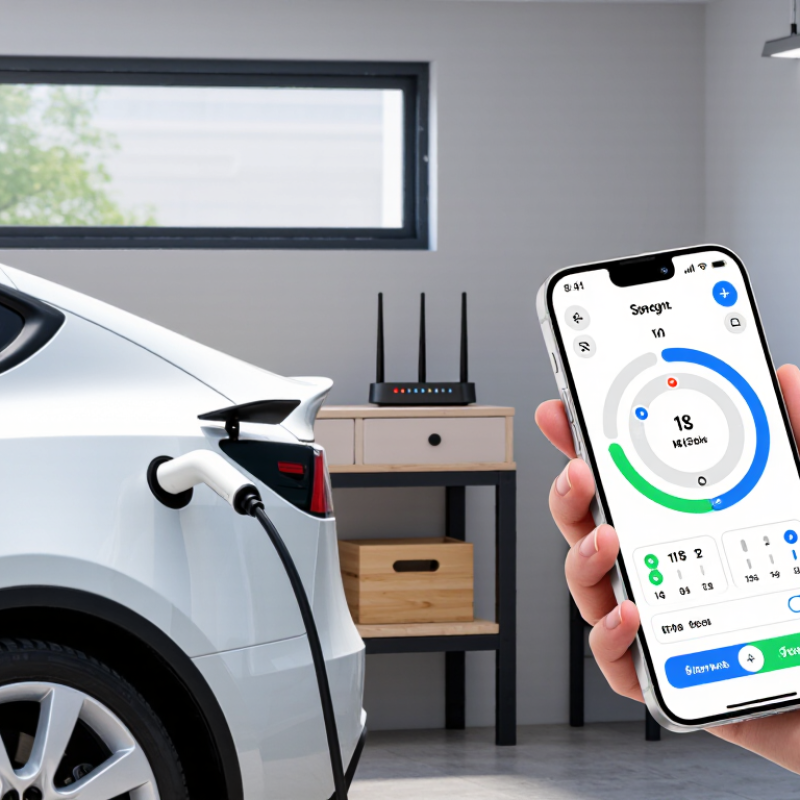
How to Connect an EV Charger to a Smart Home App?

Check EV Charger and Smart Home App Compatibility

Before connecting an EV charger, confirm that it can communicate with your smart home app. Check Wi-Fi frequency, Ethernet support, Bluetooth setup, and cloud requirements. Some chargers use an open communication protocol, such as OCPP 2.0.1, while others depend on private APIs. The Open Charge Alliance identifies smart charging as a core OCPP function. Without compatible software, your app may show charging status but cannot control charging schedules.

The International Energy Agency reported more than 14 million electric cars were sold globally in 2023. That growth makes reliable home integration increasingly important. Check whether the app supports your charger’s exact model and firmware version. Look for controls such as start, stop, delayed charging, load balancing, and energy monitoring. Your home energy system also needs compatible data access. A charger can appear connected, yet automation may still fail. This is a common installation lesson. Compatibility lists can also become outdated, so verify them before purchase.

Tips: Test one simple routine first, such as starting a charge at midnight. Confirm the app reports the correct battery level and charging power. Keep the charger firmware updated. Ask a qualified installer to check circuit capacity and network signal strength. Do not assume “smart” means universally compatible. The U.S. National Renewable Energy Laboratory notes that managed charging can help coordinate EV demand with household and grid conditions, but results depend on communication quality and configuration.

Prepare the Charger, Network, and Account Credentials

Before opening the smart home app, prepare the charger and confirm its installation is complete. A qualified electrician should verify the circuit, grounding, and protective devices. Do not open the enclosure or guess at wiring. Keep it simple. Power on the charger and check for a steady status light.

Your network details matter. Many residential chargers use 2.4 GHz Wi-Fi, so confirm the required frequency in the manual. Place the router within reliable range, and avoid guest networks that block device communication. The International Energy Agency’s Global EV Outlook 2024 reports that public charging points grew by more than 40% in 2023. That expansion makes dependable connectivity increasingly important at home. I sometimes overcomplicate this step. A quick signal check is better.

Create the charging account with an individual email address and a strong, unique password. Enable multi-factor authentication when available, then record recovery details offline. Never send credentials through casual messages. The 2024 Data Breach Investigations Report found that the human element appeared in 68% of breaches, showing how small habits can create large risks. Pair the charger while standing near it, enter the network password carefully, and install verified firmware updates. Test one scheduled charge before adding household permissions. I still verify twice. During testing, watch the app, charger indicator, and vehicle for matching status updates.

EV Charger Smart Home App Connection Readiness

A successful connection usually depends on three preparation areas: the charger must be powered and ready for pairing, the home network must be available at the installation location, and the user must have valid app account credentials. The chart shows the number of practical checks in each area.

Connect the EV Charger to Your Home Wi-Fi

How to Connect an EV Charger to a Smart Home App?

Connecting an EV charger begins with a stable home Wi-Fi signal. Place your phone beside the charger before opening the smart home app. Confirm whether the charger supports 2.4 GHz, 5 GHz, or both. Many residential devices still prefer 2.4 GHz for stronger wall penetration. The International Energy Agency reported more than 14 million electric cars sold worldwide in 2023. Reliable home connectivity now matters to millions of drivers. A full phone signal does not guarantee strong charger reception. Metal garage doors and concrete walls can create weak spots.

Open the app, choose “Add Device,” and select the home Wi-Fi network. Enter the password carefully, rather than relying on copied text. Keep the phone close until pairing finishes. Use a private network with WPA2 or WPA3 encryption. The National Institute of Standards and Technology recommends strong authentication, encryption, and regular wireless monitoring. Update the charger’s firmware after installation. Use a unique Wi-Fi password, too. Small steps prevent avoidable access problems.

Test the connection beside the parked vehicle. Start a delayed charging schedule and check whether the app displays progress. If pairing fails, move the router or add a suitable mesh node. Avoid placing network equipment near heat, water, or electrical obstructions. I once assumed a charger was defective when the real problem was poor garage coverage. That mistake is easy to repeat. Wi-Fi can look fine indoors, yet fail at the driveway. Some app features may also stop working during an internet outage.

Add and Configure the Charger in the Smart Home App

Open the smart home app and select Add Device or Add Charger. Keep the charger powered, then scan its QR code or enter its pairing code. The app should display the charger’s serial number and connection status. Check both details before continuing. The International Energy Agency reported more than 14 million electric cars were sold worldwide in 2023, making reliable home charging increasingly important. A stable connection matters more than a decorative interface.

Name the charger clearly, such as “Garage Charger,” then assign it to the correct home, room, and user account. Set the vehicle’s charging current only within the electrician’s approved limit. Add your electricity tariff if the app supports scheduling. Choose charging hours that match lower-cost periods, but confirm the schedule on the charger itself. I once assumed an app schedule had saved correctly. It had not. The car started charging immediately.

Enable notifications for charging completion, connection loss, and abnormal temperature alerts. Avoid sharing administrator access casually. The U.S. Department of Energy recommends managed charging as a way to coordinate vehicle demand with grid conditions. However, automation is not always perfect. Test one complete charging session while watching the power level, start time, and app status. If the charger disconnects, restart the network connection and inspect the cable before changing advanced settings. Keep firmware updates enabled, and review permissions after every major app update.

Test Charging Controls, Schedules, and Notifications

Connecting an EV charger to a smart home app should begin with a controlled test, not a rushed installation. Confirm that the charger appears in the app, then start and stop a session from the phone. Watch the physical indicator and vehicle dashboard together. A five-second delay is normal; an unexplained restart is not. The International Energy Agency reported more than 14 million electric cars sold worldwide in 2023, increasing the need for dependable home charging systems (Global EV Outlook 2024).

Test scheduling with a partially charged vehicle. Set charging for an off-peak window, lock the phone, and check whether charging begins without another command. Compare the app’s recorded start time with the charger’s local clock. Time-zone errors can quietly defeat a schedule.

The U.S. Department of Energy notes that managed charging can shift demand away from peak periods, but savings depend on utility rates and household behavior. That detail matters. A schedule is not automatically economical.

Notifications deserve equal attention. Disconnect the cable, interrupt the household Wi-Fi, and trigger a completed-charge alert. Check whether messages arrive promptly and identify the correct event. During testing, I would record each result, including failures. My first assumption would be too optimistic. An app may show “charging” while the vehicle is waiting, or send no alert after a connection drops. Review permissions, signal strength, software updates, and account security. The National Institute of Standards and Technology recommends layered protection for connected devices; use unique credentials and multi-factor authentication where available.

FAQS

What should I check before pairing a home charger?

Confirm installation is complete and professionally verified. Check the circuit, grounding, and protective devices. Keep the enclosure closed. Power it on and look for a steady status light.

Which Wi-Fi connection usually works with a home charger?

Many chargers require a 2.4 GHz network. Check the manual before pairing. Place the router within reliable range. Avoid guest networks that block device communication. A quick signal check helps.

How should I protect my charging account?

Use an individual email address and a unique, strong password. Enable multi-factor authentication when available. Store recovery details offline. Never send login credentials through casual messages.

How do I add the charger to the smart home app?

Open the app and choose Add Device or Add Charger. Keep the charger powered. Scan its QR code or enter its pairing code. Confirm the displayed serial number and connection status.

How should I name and organize the charger?

Use a clear name, such as “Garage Charger.” Assign the correct home, room, and user account. Clear labels prevent confusion when several household devices appear.

How can I set a safe charging schedule?

Add the electricity tariff if the app supports scheduling. Select lower-cost charging hours when appropriate. Keep the charging current within the electrician’s approved limit. Confirm the schedule on the charger itself.

What should I test after setup?

Test one complete charging session. Watch the vehicle’s power level, the start time, and the app status. Check the charger indicator too. They should show matching updates. Test once.

What should I do if the charger disconnects?

Restart the network connection and inspect the cable. Do not change advanced settings immediately. Check for connection-loss or temperature alerts. I once trusted an app schedule without checking it. The vehicle charged immediately. That mistake deserves a second look.

Conclusion

Learning how to connect an ev charger to a smart home app begins with confirming that both systems are compatible and support the same connection methods. Before starting, prepare the charger, a stable home Wi-Fi network, and the account details required for setup. Make sure the charger is powered on and positioned within reliable wireless range. Then use the charger’s setup process to connect it to the home network, entering the correct Wi-Fi information and checking that the connection is active.

After the charger is online, open the smart home app, sign in, and add the charger as a new device. Follow the in-app instructions to assign a name, configure user permissions, and select preferred charging settings. Complete the setup by testing basic charging controls, creating a schedule, and checking notification options. A successful test should confirm that the app can start or stop charging, follow scheduled periods, and report important status updates. Keeping the charger, network, and app updated can also help maintain reliable performance.

Liam

Liam

Liam is a dedicated marketing professional with a profound expertise in the industry, where he excels at highlighting the unique advantages of our core products. With a keen understanding of market trends and consumer needs, Liam frequently updates our company’s professional blog, providing......